Anchor subtotals correctly and keep Result assignments independent for each waterfall variant.
Set an individual Result
Use Individual categories → Apply settings to → Waterfall result, or the semicolon-separated Result categories list. A full hierarchy path disambiguates repeated names. Result values can use the supplied category amount or the current running balance; they are never added as another contribution.
Scoped by variant
A newly selected waterfall variant starts without a Result assignment. Returning to a previously configured variant restores its own Result settings. Breakdown and Stacked breakdown expose Result too.
Breakdown Results and costs
A Breakdown Result shows its anchor without incoming change bars; later changes start from it. Invert is hidden for snapshot breakdown variants. In running contributions, Invert reverses a contribution’s sign; an already-negative expense needs no inversion.
Reference-only periods
The default Missing comparison values → Use the available value treats the missing side as zero for contribution arithmetic while keeping source blanks visible in tooltips. A reference-only 20 period contributes −20 in Reference → Actual. Leave gaps is an alternative. Breakdown has its own Missing breakdown values option for appearing/disappearing members.
An Actual/Plan/Forecast separator marks the first outlook period after the last observed Actual. Interior blanks do not move it; an observed zero still counts as Actual.
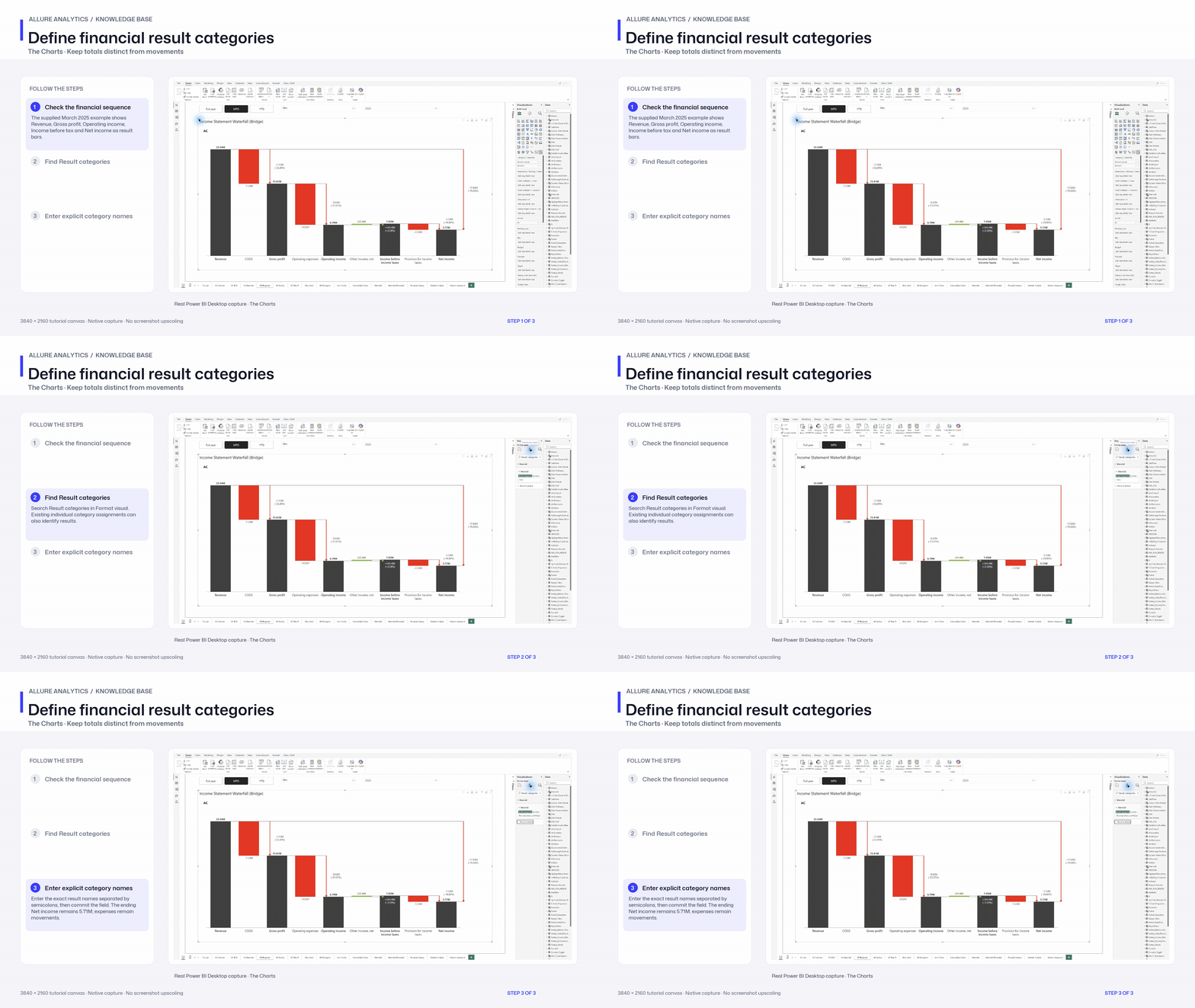
Define financial result categories
Native named-result configuration chapter on the supplied financial report. Existing per-category assignments are already present.
3840 × 2160 tutorial canvas at 20 fps. Real 2560 × 1392 Power BI Desktop screenshots retain their native size; this is a paced step sequence.
- Check the financial sequence — The supplied March 2025 example shows Revenue, Gross profit, Operating income, Income before tax and Net income as result bars.
- Find Result categories — Search Result categories in Format visual. Existing individual category assignments can also identify results.
- Enter explicit category names — Enter the exact result names separated by semicolons, then commit the field. The ending Net income remains 5.71M; expenses remain movements.