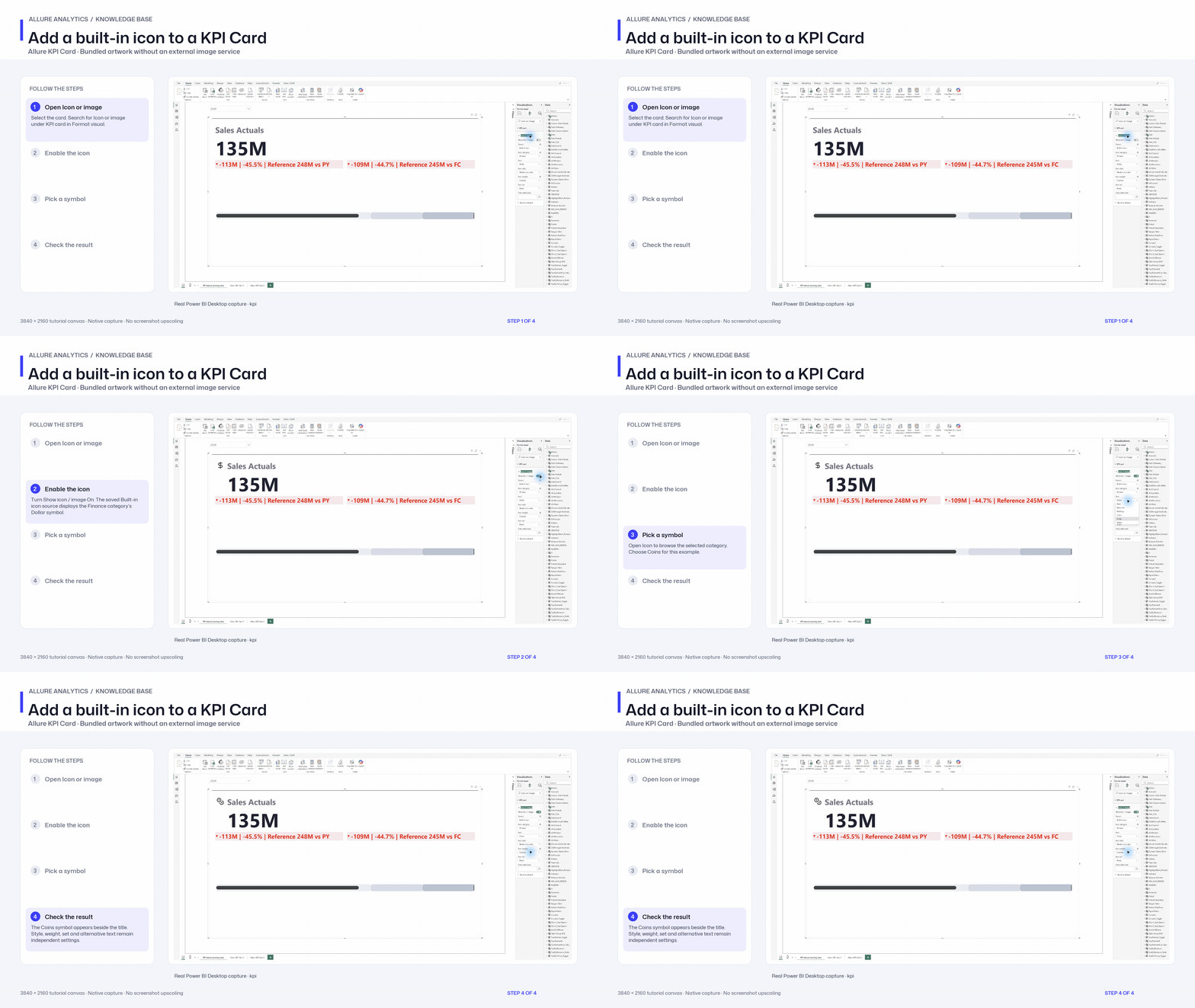
Choose a category, pick an SVG style, and place a crisp symbol entirely within the headline area.
Use Icons Studio artwork offline
- Open KPI card → Icon or image and enable Show icon / image.
- Choose Built-in icon, then an Icon category to narrow the list.
- Select the icon and its Modern, Fluent, Material or Classic style where available.
- Choose Black or Colored, then refine color, shape, weight and padding.
- Set placement, square area, icon scale and horizontal/vertical offsets.
Precise placement
There are 334 icon choices, 32 categories and 1,314 packaged SVG variants. Browsing a different category keeps the current icon until you select a replacement. Circle shapes remain square; scale changes the symbol independently of its shape. Offset controls help center a dollar or other asymmetric symbol.
Built-in SVG icon centered in its circle using scale and offset controls.
Click to enlarge.
Upload your own image
Choose Upload image and use the image-area + action while editing. PNG, JPEG, SVG, animated GIF, WebP and other browser-supported images can be embedded; uploads accept up to 8 MB. Or choose Embedded image / SVG and provide safe inline SVG or data:image bytes. Supported SVG content is sanitized.
- All positions—including Bottom—remain above the variances in the headline area.
- Fit/Fill/Stretch/Original size, dimensions, gap, padding, rotation, transparency, border, shadow and hover effects control appearance.
- Alternative text and relevant color/text properties expose fx controls. Reduced-motion preferences suppress transitions.
No icon service required
Artwork is bundled inside the visual. External image URLs are not fetched; replace saved external URLs with embedded bytes or uploads.
Add a built-in icon to a KPI Card
Built-in icon visibility, category and symbol chapter. Embedded upload and placement options remain in the article.
3840 × 2160 tutorial canvas at 20 fps. Real 2560 × 1392 Power BI Desktop screenshots retain their native size; this is a paced step sequence.
- Open Icon or image — Select the card. Search for Icon or image under KPI card in Format visual.
- Enable the icon — Turn Show icon / image On. The saved Built-in icon source displays the Finance category’s Dollar symbol.
- Pick a symbol — Open Icon to browse the selected category. Choose Coins for this example.
- Check the result — The Coins symbol appears beside the title. Style, weight, set and alternative text remain independent settings.