Use one Specific column menu for overrides; keep hierarchy text independent from numeric alignment.
Choose the correct scope
| Format pane section | Changes |
|---|---|
| Values → Text / Number format | Global column-value typography, alignment and numbers |
| Row headers → Text | Hierarchy label typography and alignment |
| Column headers → Text | Global column heading typography and alignment |
| Specific column | Per-column/view layout, heading, values, numbers, charts and visibility |
Edit one column
- Open Specific column.
- Choose Configure view: Current view, Table or Chart.
- Choose Apply settings to: All columns or an individual column, including formulas and hidden columns.
- Change the applicable section. Choose Alignment → Inherit to follow the corresponding global text setting.
Compact editing without interrupted typing
The on-canvas Columns editor uses draft text. Finish typing and press Enter or Apply; Cancel discards the draft. Selector names stay tied to stable fields while Header text changes the displayed name. Multiline formulas and active text composition do not submit on Enter.
Chart labels have a position too
Values alignment controls text in its column label area. Labels attached to bars or markers keep their chart-specific placement; use the chart label-position setting for those.
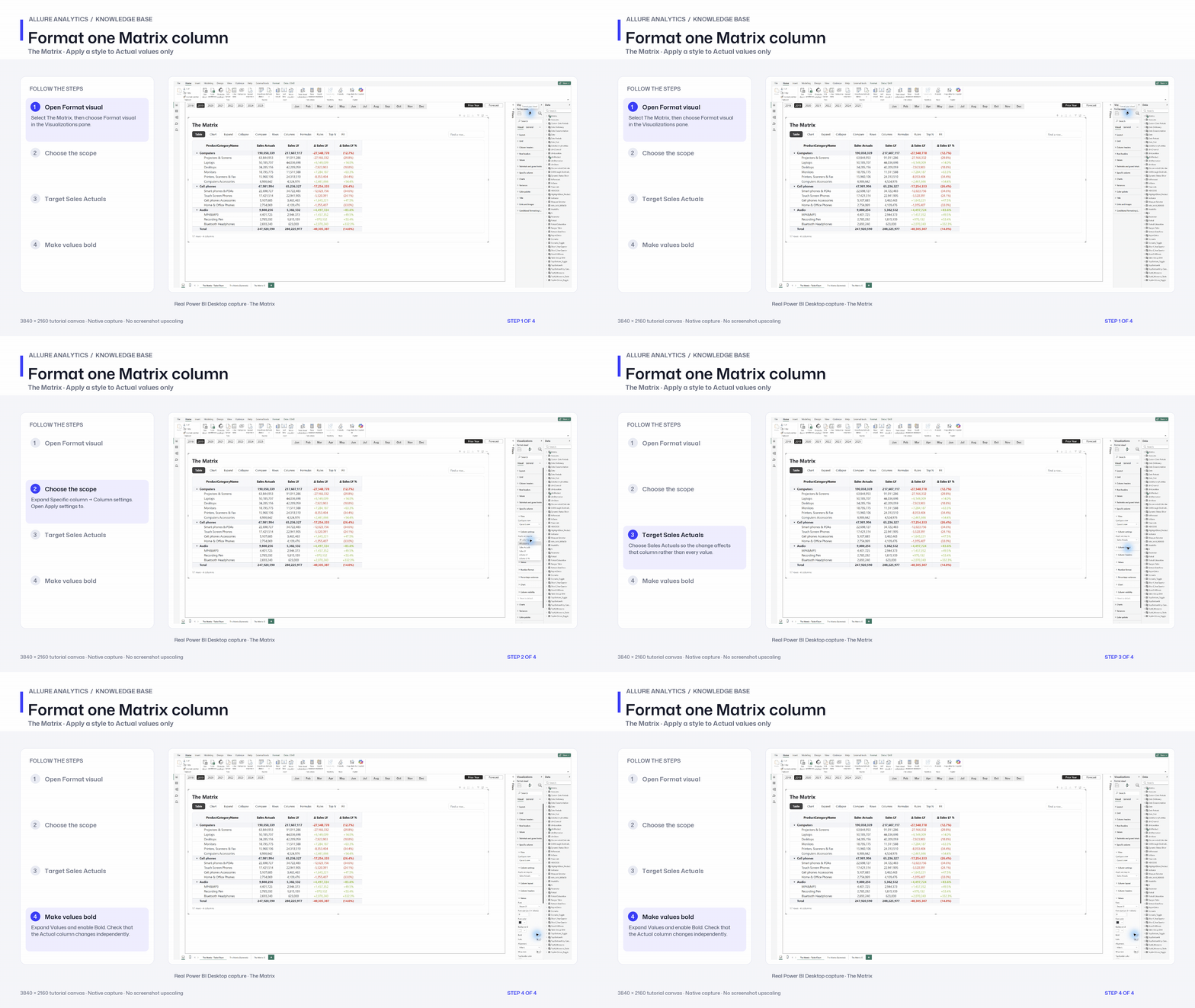
Format one Matrix column
Specific-column formatting chapter.
3840 × 2160 tutorial canvas at 20 fps. Real 2560 × 1392 Power BI Desktop screenshots retain their native size; this is a paced step sequence.
- Open Format visual — Select The Matrix, then choose Format visual in the Visualizations pane.
- Choose the scope — Expand Specific column → Column settings. Open Apply settings to.
- Target Sales Actuals — Choose Sales Actuals so the change affects that column rather than every value.
- Make values bold — Expand Values and enable Bold. Check that the Actual column changes independently.