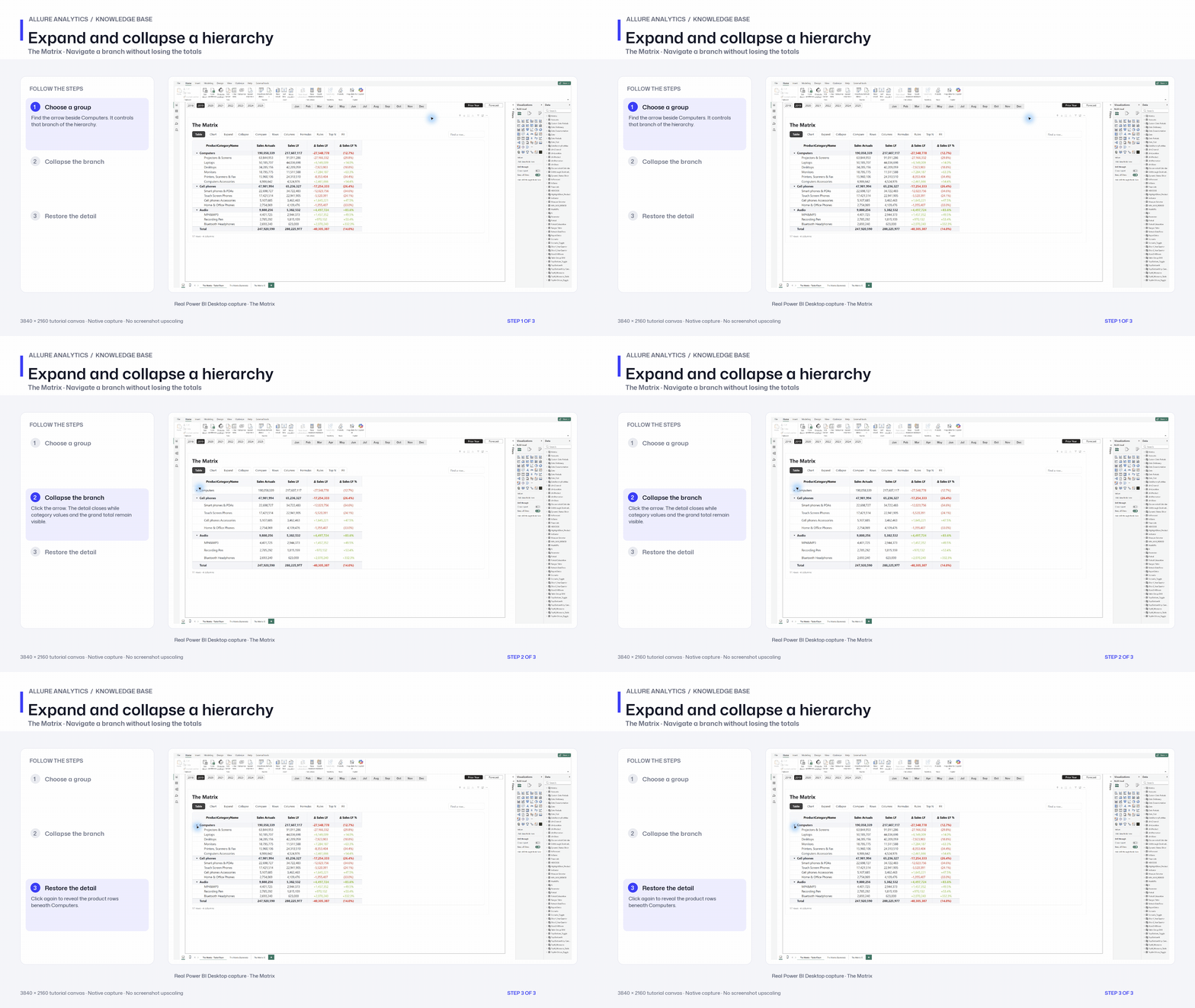
Keep the row structure aligned with Power BI expansion, and place totals independently.
Expand and collapse
Row triangles use the host’s expand/collapse state. Toolbar Expand requests the next hierarchy level; Collapse requests native drill up where available. Repeat through multiple drilled levels. The visual waits for the updated hierarchy before another request. Native drill actions and bookmarks feed the same state.
Choose triangles, +/− or chevrons in the formatting options. Category headers can show the top level, all levels or custom text. Drag the row-header separator to resize category width, and the bottom header edge to change header height.
Row and column total positions
| Total | Choices | Default / condition |
|---|---|---|
| Subtotal row | Top or Bottom | Top; independent from grand total |
| Grand total row | Top or Bottom | Bottom |
| Column subtotal | Left or Right | Requires nested column hierarchy and host totals |
| Column grand total | Left or Right | Requires grouped columns and supplied total block |
Titles and calculation source
Edit Subtotal column title ({group}), default “{group} subtotal”, and Grand total column title, default “Grand total”. Model totals preserve non-additive measure semantics. Visual sums are an explicit additive option and use loaded contributions, not a new DAX query.
Row settings stay with the hierarchy
Editing a displayed subtotal edits its underlying hierarchy row. Parent Invert can pass to descendants; Result does not make all children Results.
Expand and collapse a hierarchy
Hierarchy interaction chapter; subtotal and grand-total configuration remains to capture.
3840 × 2160 tutorial canvas at 20 fps. Real 2560 × 1392 Power BI Desktop screenshots retain their native size; this is a paced step sequence.
- Choose a group — Find the arrow beside Computers. It controls that branch of the hierarchy.
- Collapse the branch — Click the arrow. The detail closes while category values and the grand total remain visible.
- Restore the detail — Click again to reveal the product rows beneath Computers.