Let chart columns use both width and height while preserving their intended renderer.
Fit columns and rows
Responsive layout fits applicable bars, variance charts, dots, lollipops, bullets, integrated comparisons and waterfalls across available space in both views. Markers/fonts retain pixel dimensions. With Fit rows Off, Grid → Spacing → Fixed row height accepts 16–100 px; the default is 32 px. Use 16–22 px with a suitable font for compact tables.
Combined versus separate charts
Combine charts when space is limited can combine a compatible bar and an absolute comparison within a group. Wider layouts restore their separate columns. Optional references/percentages may move into tooltips when Hide optional columns when small is enabled, while calculations continue using them.
| Responsive priority | Meaning |
|---|---|
| −1 (Auto) | Allow adaptive behavior |
| 0 (Keep) | Keep the column reachable; scroll if required |
| Positive optional priority | Allow it to yield space when the layout is small |
Keep every required detail
Disable combining or pin grouped variance columns with priority 0 when they must stay separate. Minimum widths/heights can require scrolling. Maximum responsive row height 0 means Automatic, without the old 100 px cap. Load more requests another host segment; formulas, ranking and scales use loaded data.
Respect the available dataset
No responsive option can retrieve categories removed by the model, RLS or slicers. A readable scrollbar is preferable to compressing required content into unusable marks.
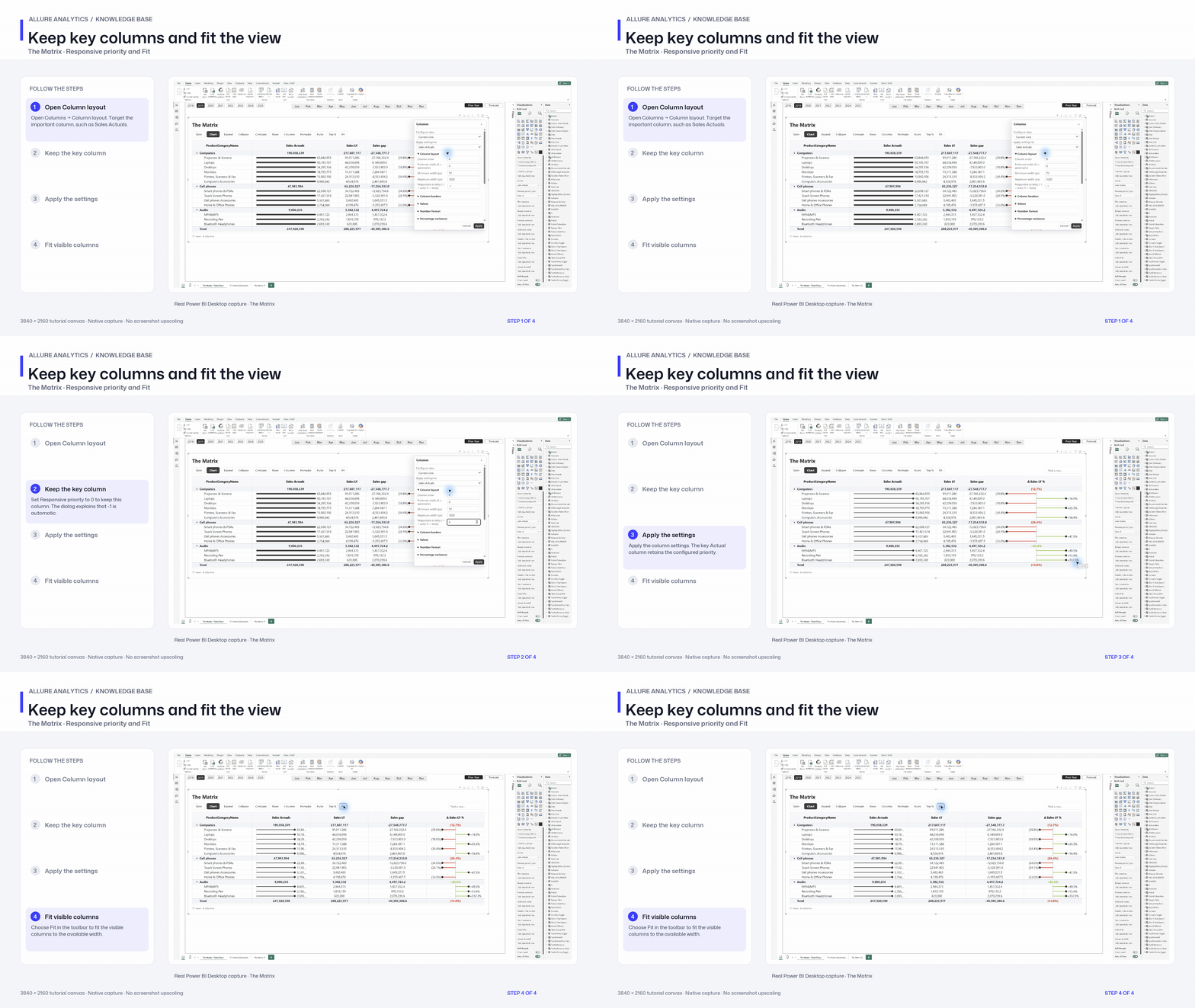
Keep key columns and fit the view
Native column responsive-priority and Fit controls; compact row-height chapter remains to capture.
3840 × 2160 tutorial canvas at 20 fps. Real 2560 × 1392 Power BI Desktop screenshots retain their native size; this is a paced step sequence.
- Open Column layout — Open Columns → Column layout. Target the important column, such as Sales Actuals.
- Keep the key column — Set Responsive priority to 0 to keep this column. The dialog explains that -1 is automatic.
- Apply the settings — Apply the column settings. The key Actual column retains the configured priority.
- Fit visible columns — Choose Fit in the toolbar to fit the visible columns to the available width.