Add meaningful rows without modifying the semantic model.
Row formula recipe
Open Formulas → Formula type → Rows. Expressions accept numbers, [row label], [full / row / path], parentheses and + − × ÷.
| Name | Example expression |
|---|---|
| Gross profit | [Revenue] - [Costs] |
| Gross margin | [Gross Profit] / [Revenue] |
Use a full path for repeated labels
A row name used in several branches can be ambiguous. Insert its full path to identify the right account. Missing or ambiguous references generate guidance; missing values and division by zero remain blank. Formula rows do not contribute again to totals.
Result is different from a formula
A Result anchors the cumulative preceding sibling contributions in model order. It is excluded from the next accumulation so a profit subtotal is not counted twice. Visual sorting does not redefine that calculation order. A formula explicitly combines named row operands; use the choice that matches your financial logic.
Additive boundaries
Top/Bottom N Others, optional visual totals and cumulative waterfalls sum loaded contributions. They should not be used to aggregate ratios or distinct counts.
Add an operating margin row
Row-formula chapter; financial Result configuration remains to capture.
3840 × 2160 tutorial canvas at 20 fps. Real 2560 × 1392 Power BI Desktop screenshots retain their native size; this is a paced step sequence.
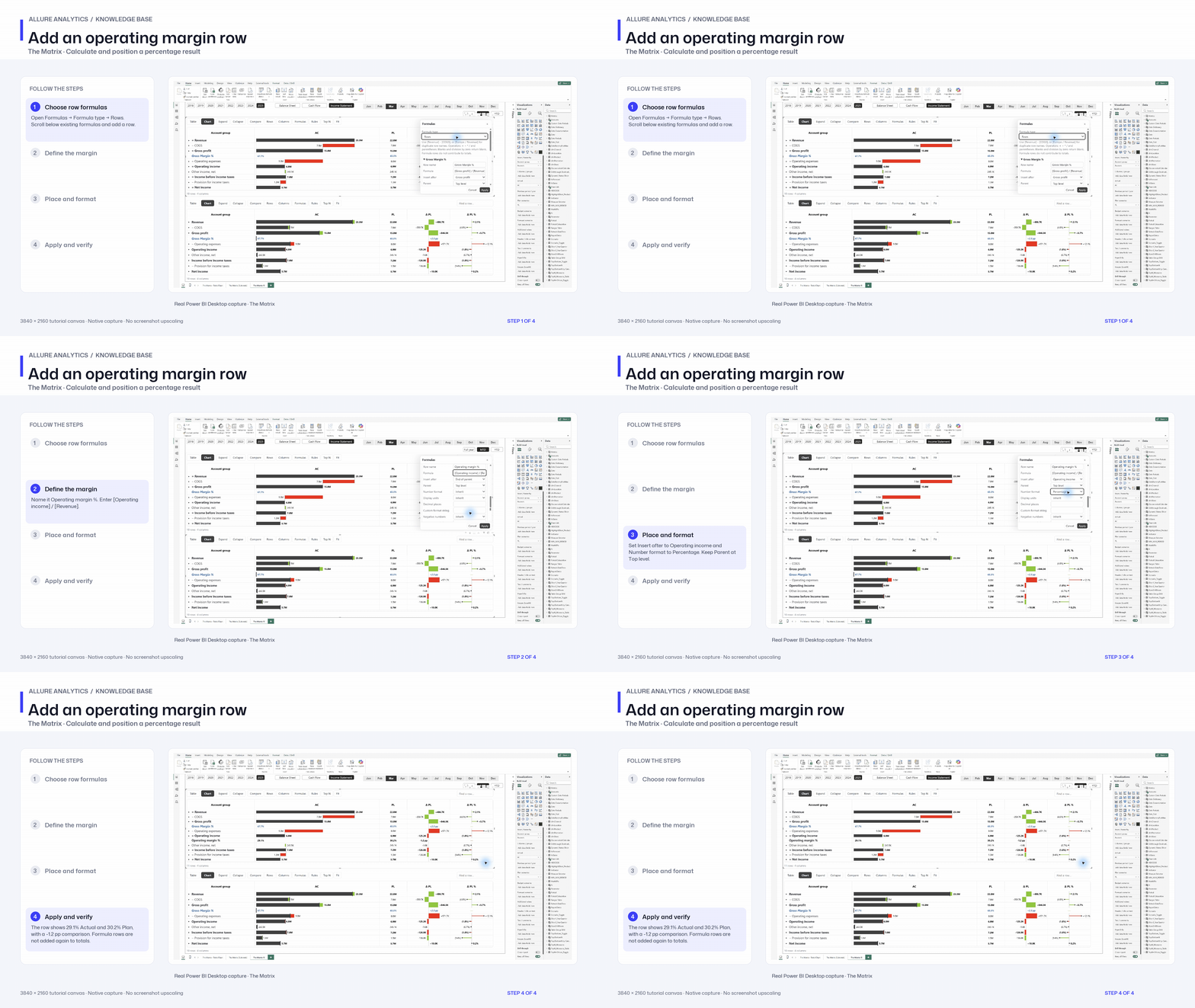
- Choose row formulas — Open Formulas → Formula type → Rows. Scroll below existing formulas and add a row.
- Define the margin — Name it Operating margin %. Enter [Operating income] / [Revenue].
- Place and format — Set Insert after to Operating income and Number format to Percentage. Keep Parent at Top level.
- Apply and verify — The row shows 29.1% Actual and 30.2% Plan, with a -1.2 pp comparison. Formula rows are not added again to totals.