Let slicer-driven text explain the context, with independent subtitle placement and typography.
Label title and subtitle
Under Label, edit the main title and use its fx control where supported. Enable Subtitle for its own text/fx, font, size, bold/italic/underline, color/fx, transparency, alignment, wrapping and spacing. Subtitle positions are Before Value, After Value and After variances. Blank subtitle text consumes no space.
DAX
Selected period label =
    "Sales · " &
    SELECTEDVALUE('Calendar'[Year], "All years")
Name length
Label → Label → Name display
| Option | Result |
|---|---|
| Full name | Wraps a long title in a narrow card |
| Cut name | One line with ellipsis at Name width (px); full text remains in title hover |
Name width accepts 20–2000 px, default 200. This affects custom text, category titles and measure labels without changing their identities.
Full-name display wraps a long card label rather than losing its meaning.
Click to enlarge.
Comparison and legend text
Use editable comparison labels to distinguish Target, Prior period and Forecast. Trend legend styles retain scenario patterns useful for Column Overlapping and IBCS. The legacy card title fallback also has its declared fx descriptor; explicit main Label text takes precedence.
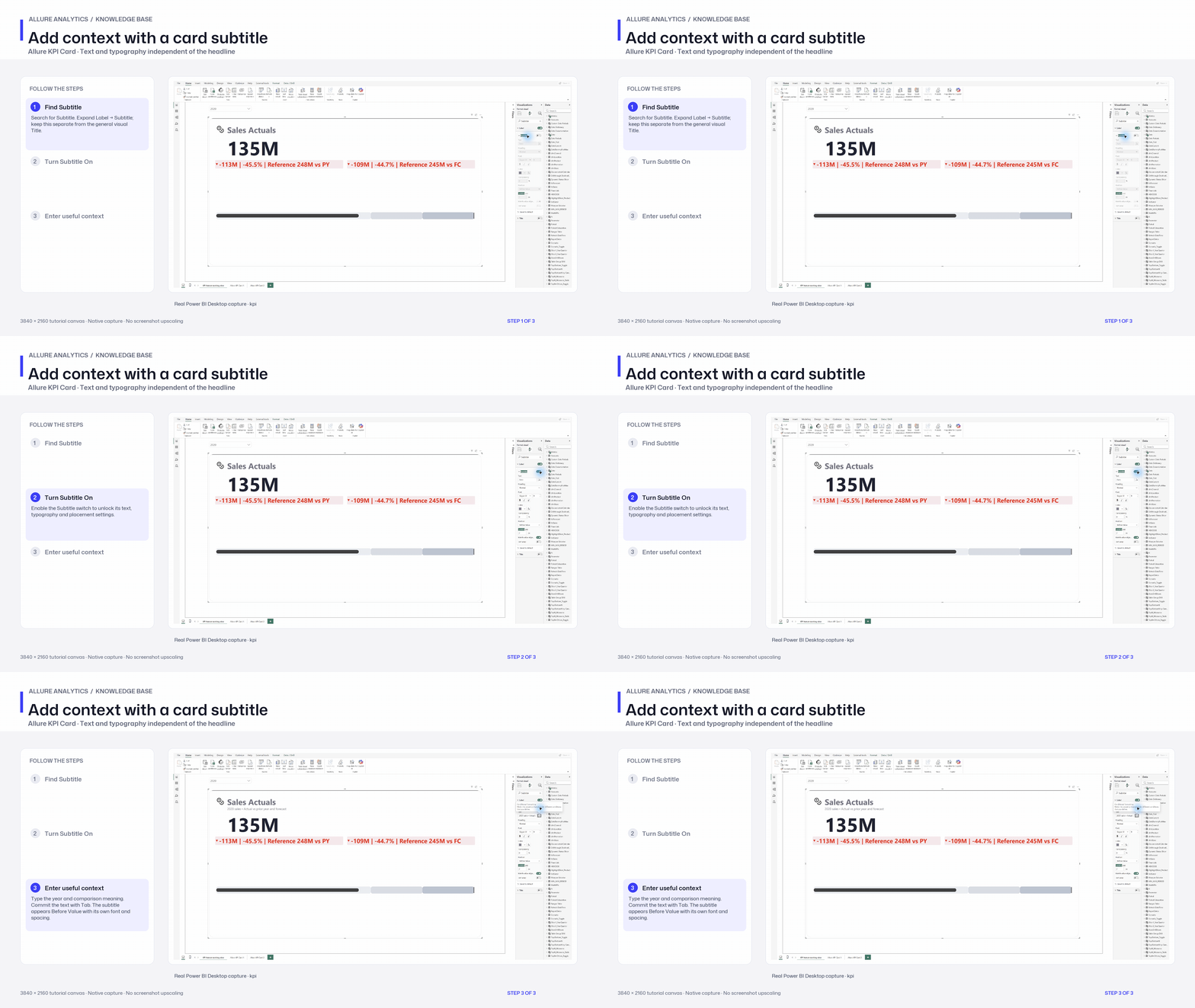
Add context with a card subtitle
Subtitle visibility and text-entry chapter. Dynamic fx and Full-name configuration remain to capture.
3840 × 2160 tutorial canvas at 20 fps. Real 2560 × 1392 Power BI Desktop screenshots retain their native size; this is a paced step sequence.
- Find Subtitle — Search for Subtitle. Expand Label → Subtitle; keep this separate from the general visual Title.
- Turn Subtitle On — Enable the Subtitle switch to unlock its text, typography and placement settings.
- Enter useful context — Type the year and comparison meaning. Commit the text with Tab. The subtitle appears Before Value with its own font and spacing.