Choose the field first, then format its control and model order.
Types by data
| Data | Available controls |
|---|---|
| Category | Dropdown, vertical list, searchable list, tiles, buttons |
| Number | Categorical choices or numeric range |
| Date | Date Picker, Between, Before, After, Relative Date/Time, to-date and rolling shortcuts |
Selection controls
Single select Off supports several values in the same field. Click the whole option row, checkbox or label. Checkbox size, Minimum selection height, item padding/gap and dropdown list padding tune density; the row retains its hit area. Closed dropdown height is independent from option-row spacing.
Compact defaults use 9 px slicer text. Increase sizes for presentation or accessibility. Clear affects one field; Clear all removes this box’s filters, while external page/report filters remain.
Power BI order versus alphabetical
Selected field → Sort → Power BI order is the default. Ascending/Descending are explicit local overrides. To show month order, set Month Name’s model Sort by column to Month Number. Selecting a field can request it as the primary model sort; combined fields initially share one joined row order.
Month names follow Power BI model order when the sort key is configured.
Click to enlarge.
Microsoft: Sort one column by another.
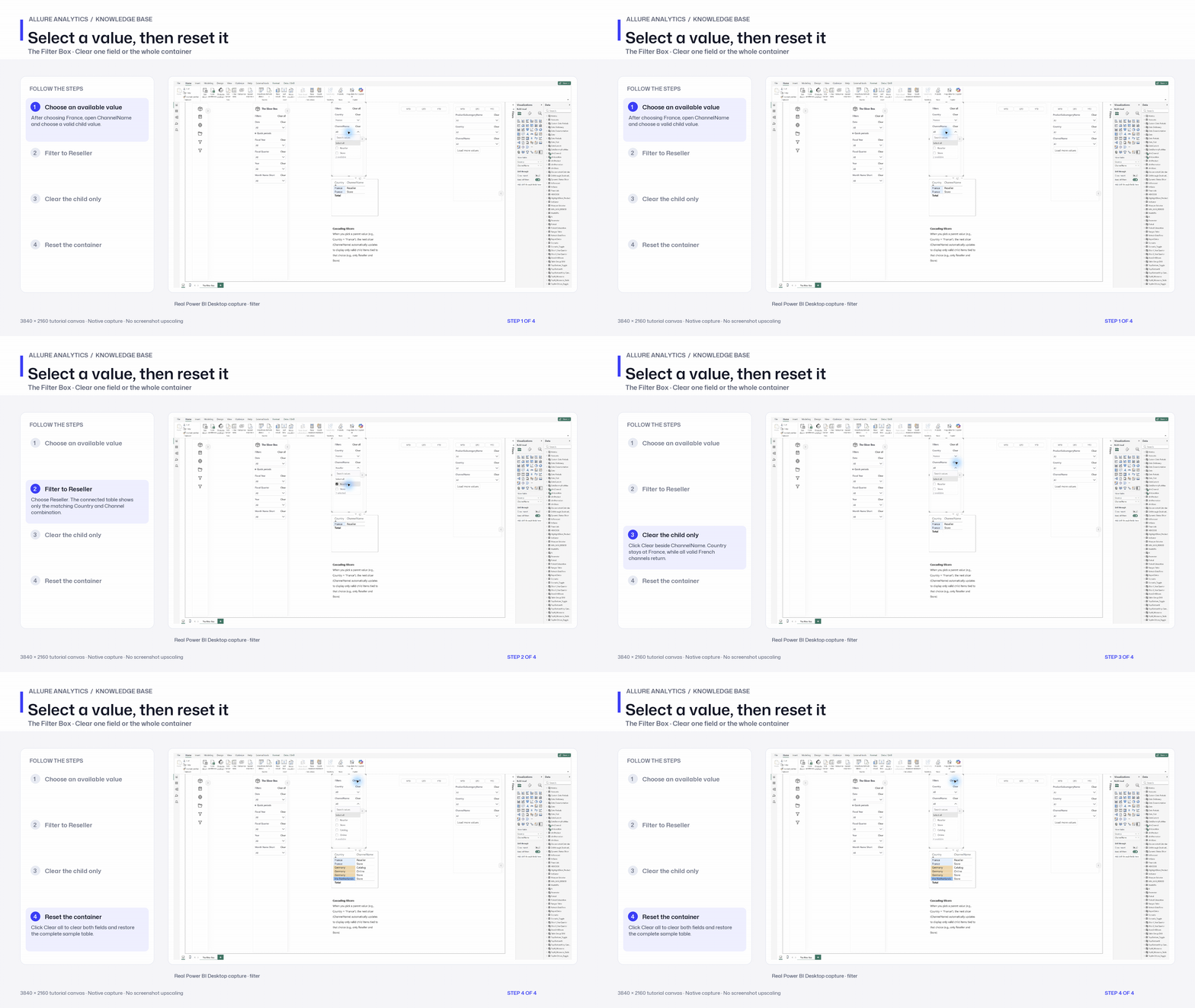
Select a value, then reset it
Dropdown selection, single-field clear and container reset; type and sort configuration remains to capture.
3840 × 2160 tutorial canvas at 20 fps. Real 2560 × 1392 Power BI Desktop screenshots retain their native size; this is a paced step sequence.
- Choose an available value — After choosing France, open ChannelName and choose a valid child value.
- Filter to Reseller — Choose Reseller. The connected table shows only the matching Country and Channel combination.
- Clear the child only — Click Clear beside ChannelName. Country stays at France, while all valid French channels return.
- Reset the container — Click Clear all to clear both fields and restore the complete sample table.