Focus attention on one line without removing the context of the others.
Legend click action
Open Titles and legend or Legend in the compact menu.
| Action | Behavior |
|---|---|
| Highlight (default) | Keep clicked series vivid; grey out the other independently rendered series |
| Show/hide | Toggle visibility and save the series choice |
Click a focused series again to clear focus. Ctrl/Cmd-click can focus several; keyboard activation works too. Highlight is local and does not change data, axes or report filters. Restore an older hidden series using Show/hide.
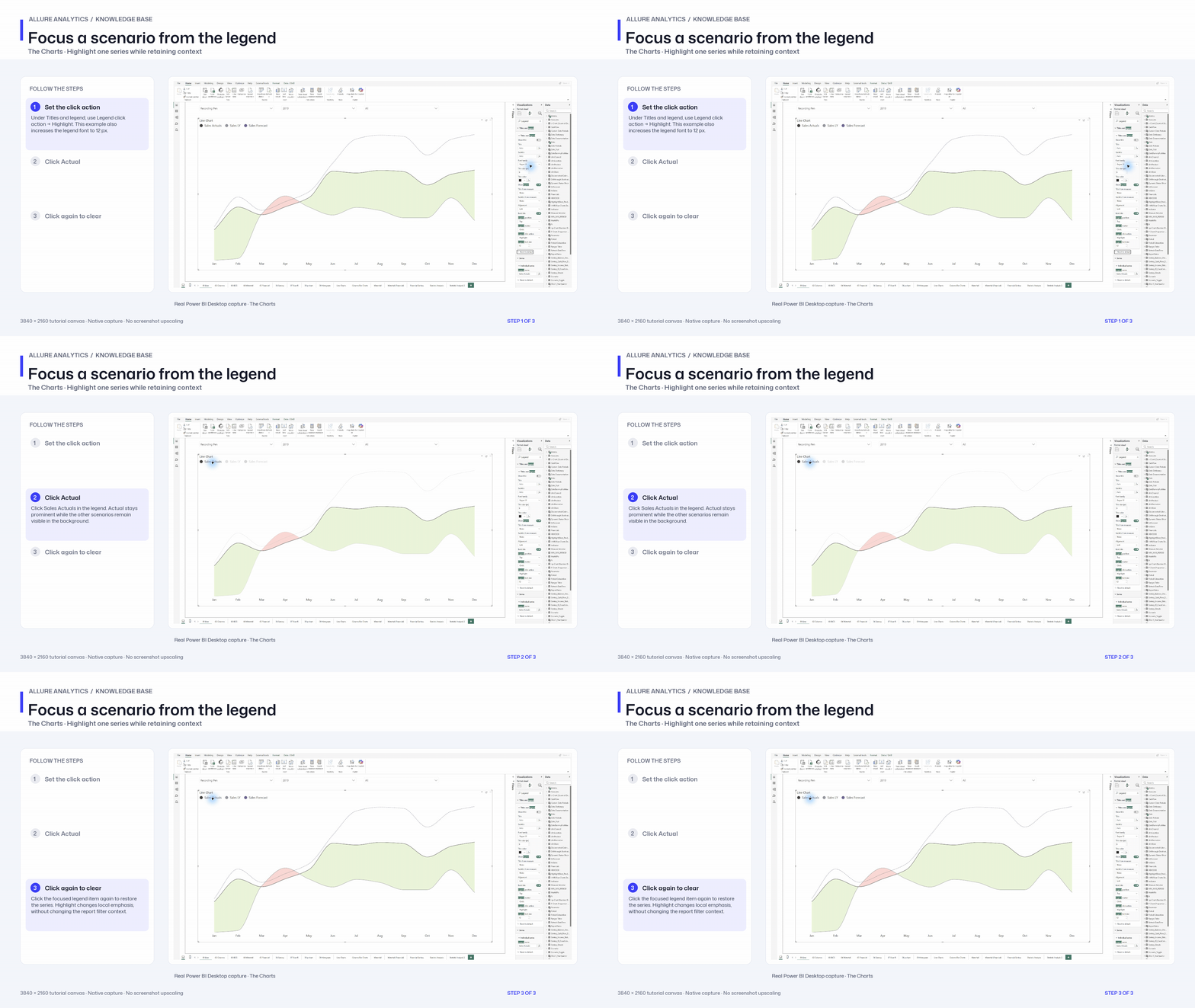
Legend highlighting focuses the selected line while retaining the other series.
Click to enlarge.
Markers and long text
Legend marker can be Scenario pattern or Circle. Patterns keep scenario notation; Circle uses series color. Data labels and Axes and grids include text wrap/full-fit settings. Financial Sankey has its own name-display and label-width controls.
Responsive labels
Use Fit full labels on resize, wrap width and maximum lines where available. A width of 0 uses automatic sizing, and 0 maximum lines permits full text for those controls. Category-label fitting can reduce font only to the configured minimum. Keep enough plot gutter for a long “Revenue” label rather than letting it overlap a bar.
Focus a scenario from the legend
Native Highlight action and focus/clear chapter. Show/hide, multi-focus and long-label formatting are additional article options.
3840 × 2160 tutorial canvas at 20 fps. Real 2560 × 1392 Power BI Desktop screenshots retain their native size; this is a paced step sequence.
- Set the click action — Under Titles and legend, use Legend click action → Highlight. This example also increases the legend font to 12 px.
- Click Actual — Click Sales Actuals in the legend. Actual stays prominent while the other scenarios remain visible in the background.
- Click again to clear — Click the focused legend item again to restore the series. Highlight changes local emphasis, without changing the report filter context.