Build a grid or scorecard, then let each arrangement respond to available space.
Choose the arrangement
Add Group / Category (KPIs), then open KPI card → Group / Category layout.
| Layout | Behavior | Useful for |
|---|---|---|
| Custom | Independently sized cards wrap in category order | A board with different detail levels |
| Rows | Equal full-width rows; aligned name, value, variances and trend | A compact scorecard |
| Uniform | Equal card sizes; shared dimensions | A dashboard card grid |
Size and reflow
In Edit mode, use a lower-right resize handle or native size settings. Custom sizes persist by category identity; resizing the first Uniform card updates all. Zero restores automatic sizing. Reading mode hides handles. Narrow rows reflow to a stacked summary, and overflow paging keeps categories accessible.
Rows layout aligns the names, headlines, comparison rows and trend charts.
Click to enlarge.
Select the whole card
Click the title, value, variance, icon or empty card padding to select the category. Ctrl/Cmd-click adds/removes categories; Enter/Space selects a focused card. Click empty board space or use Escape to clear. Chart points retain category plus period selection through the same selection manager.
Interaction setup
Choose Filter under Power BI Edit interactions when other visuals should filter rather than highlight. Resizing handles and formatting controls do not act as category selections.
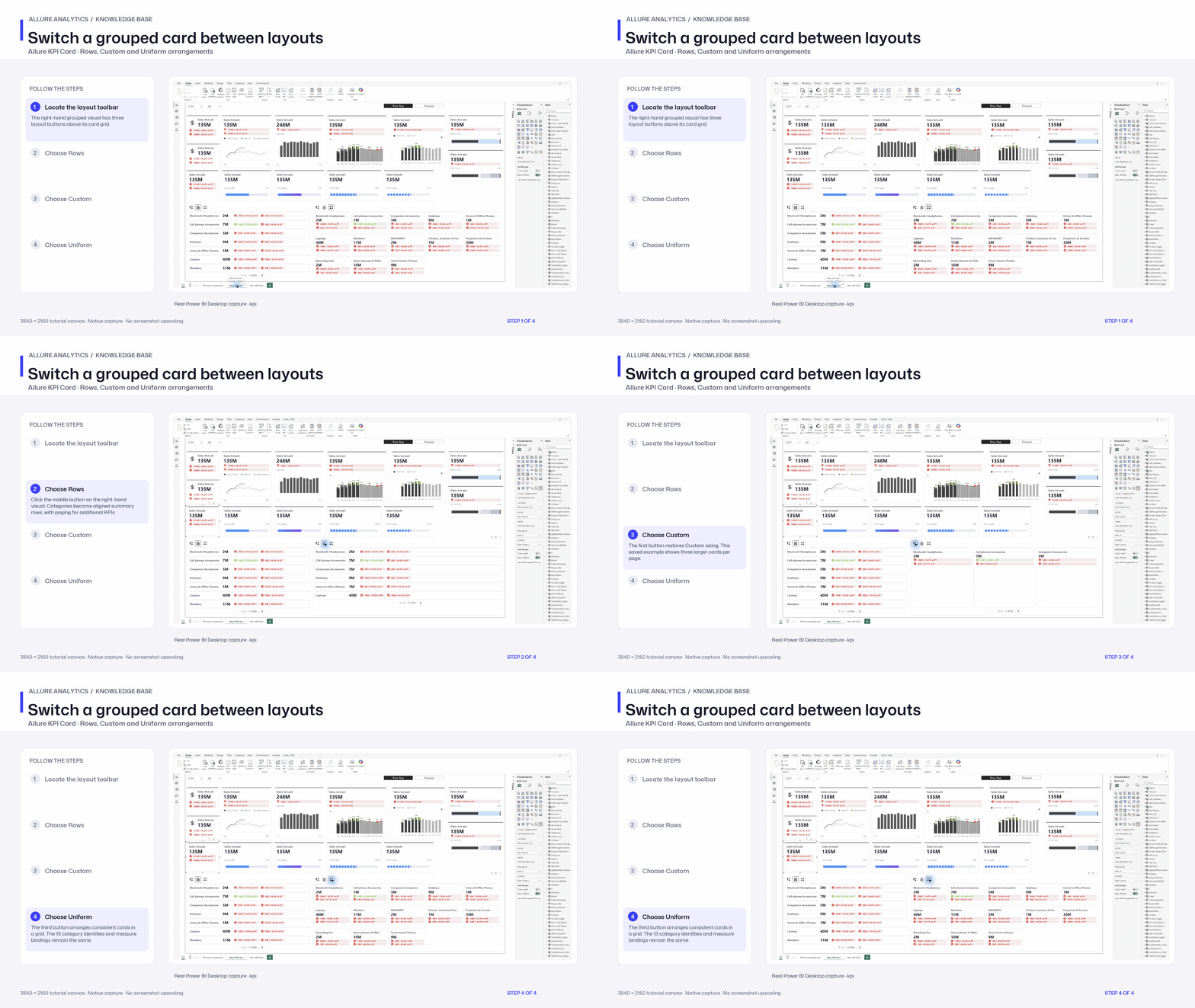
Switch a grouped card between layouts
Native grouped-card layout switching chapter. Category binding and per-card resize configuration remain in the article.
3840 × 2160 tutorial canvas at 20 fps. Real 2560 × 1392 Power BI Desktop screenshots retain their native size; this is a paced step sequence.
- Locate the layout toolbar — The right-hand grouped visual has three layout buttons above its card grid.
- Choose Rows — Click the middle button on the right-hand visual. Categories become aligned summary rows, with paging for additional KPIs.
- Choose Custom — The first button restores Custom sizing. This saved example shows three larger cards per page.
- Choose Uniform — The third button arranges consistent cards in a grid. The 13 category identities and measure bindings remain the same.